Paste a link, or upload
Drop in a podcast, webinar, stream or talking-head recording — file upload or a link from the usual platforms.
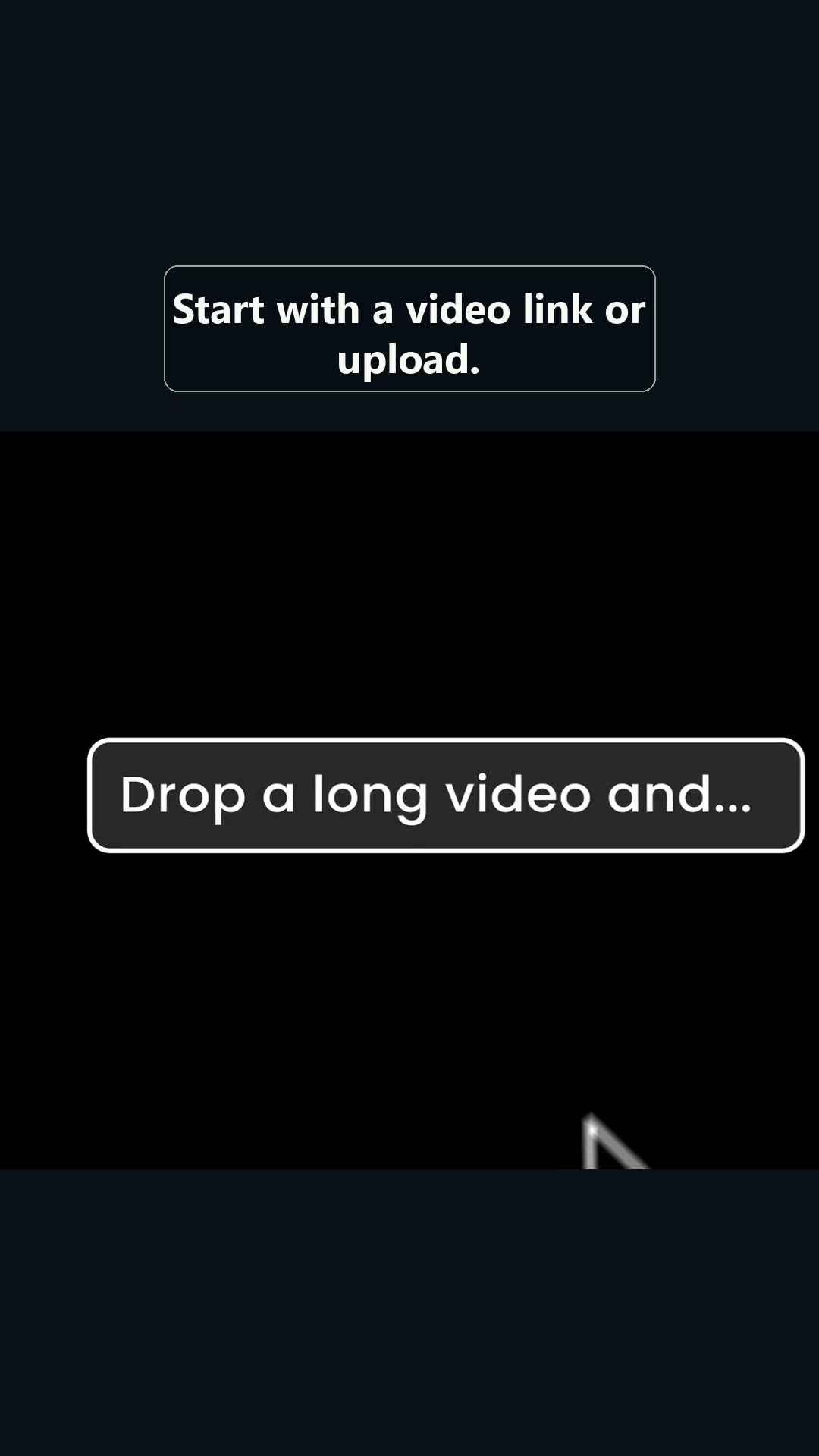 00:08
Pick Nº 07 — AI video repurposing
OpusClip finds the moments worth clipping inside one long recording — then reframes, tracks the speaker and captions them for vertical feeds. Don’t take our word for it. Drag the frame.
Reduced-motion mode: the frame above is shown at its final 9:16 crop. The handle still works, minus animation.
Links go to the official site at opus.pro. This is an independent affiliate page — we may earn a commission at no extra cost to you. The presenter above and in the demo is AI-generated.
real footage · press play
What you’re watching: the presenter is AI-generated; the product screens are official OpusClip marketing footage.
The workflow in the video is the real one: a long video goes in, and a queue of scored, vertical, captioned clips comes out. No timeline, no razor tool, no manual cropping between aspect ratios.
That reframe you just dragged by hand? The product does it on every clip automatically — the speaker-tracking crop is the feature, not a party trick.
“The edit you didn’t have time for // already cut.”
stills below are real product UI, pulled from the demo
Drop in a podcast, webinar, stream or talking-head recording — file upload or a link from the usual platforms.
00:08The model scores your footage for hook-worthy moments and proposes candidate clips — you review the queue, not the timeline.
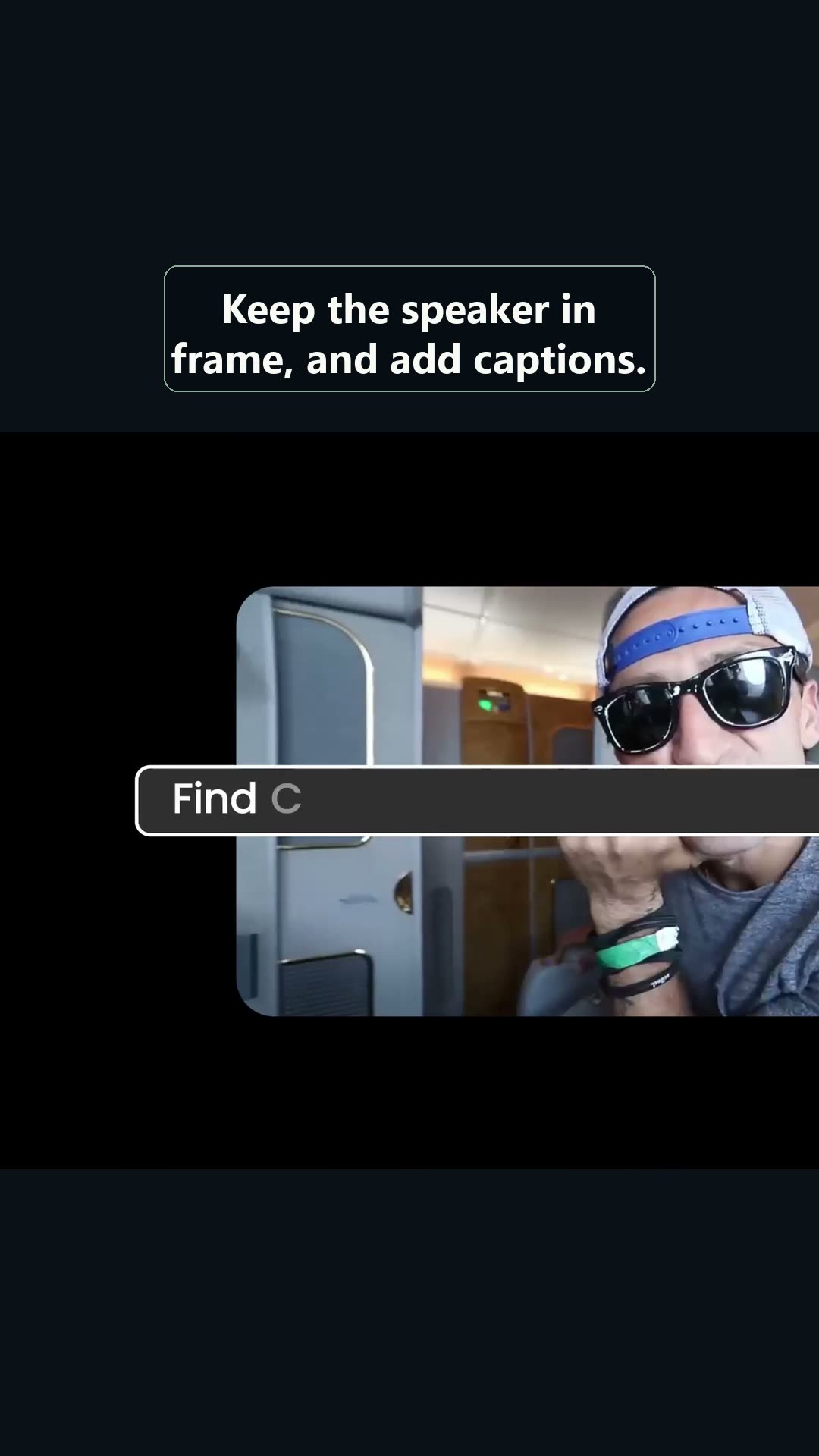 00:14
Each pick is recomposed to vertical with the active speaker kept in frame — the same crop you just dragged manually.
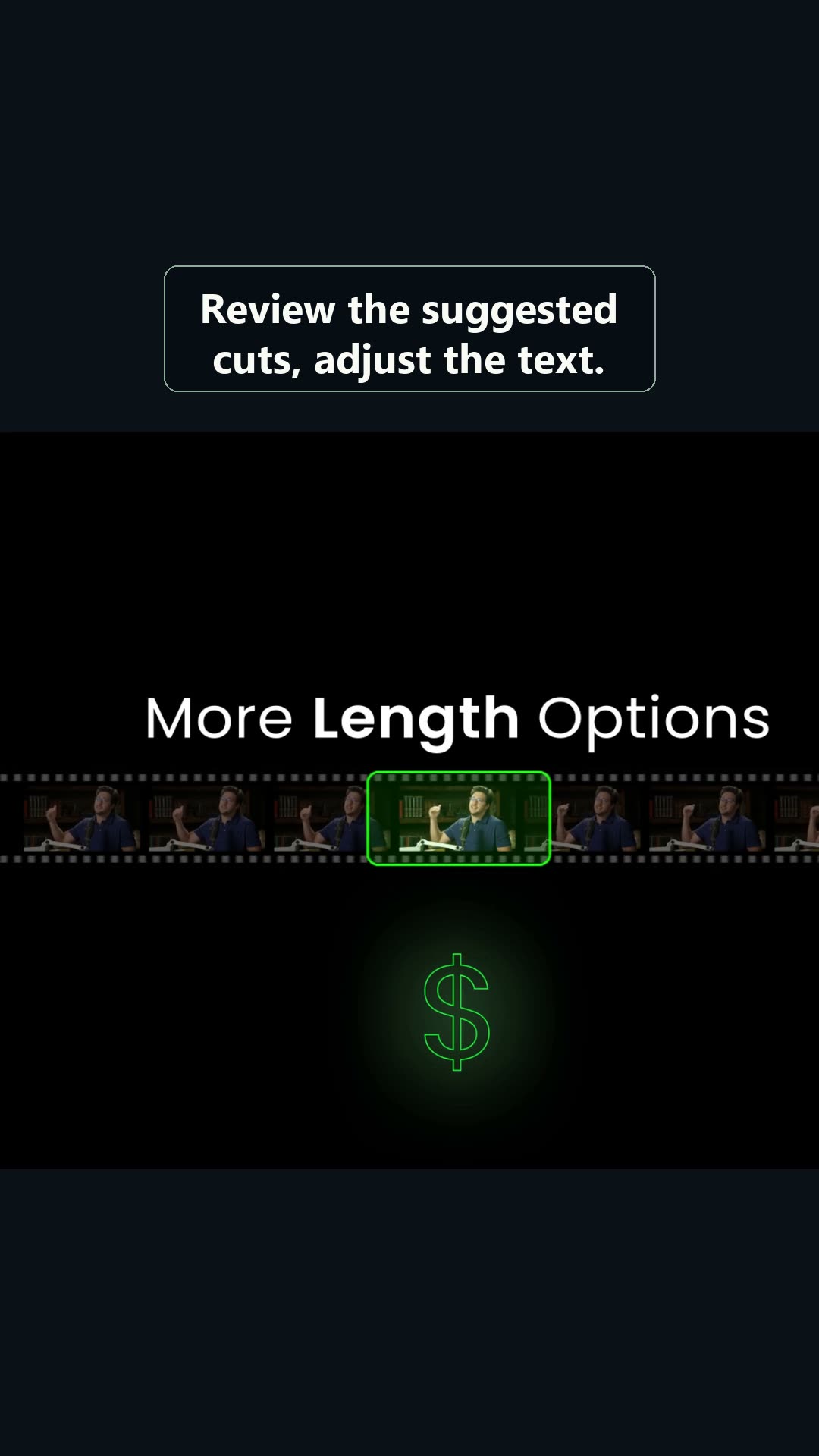 00:20
Auto-captions are styled and burned in; tweak the cut, fix any transcript slips, then export for Shorts, Reels or TikTok.
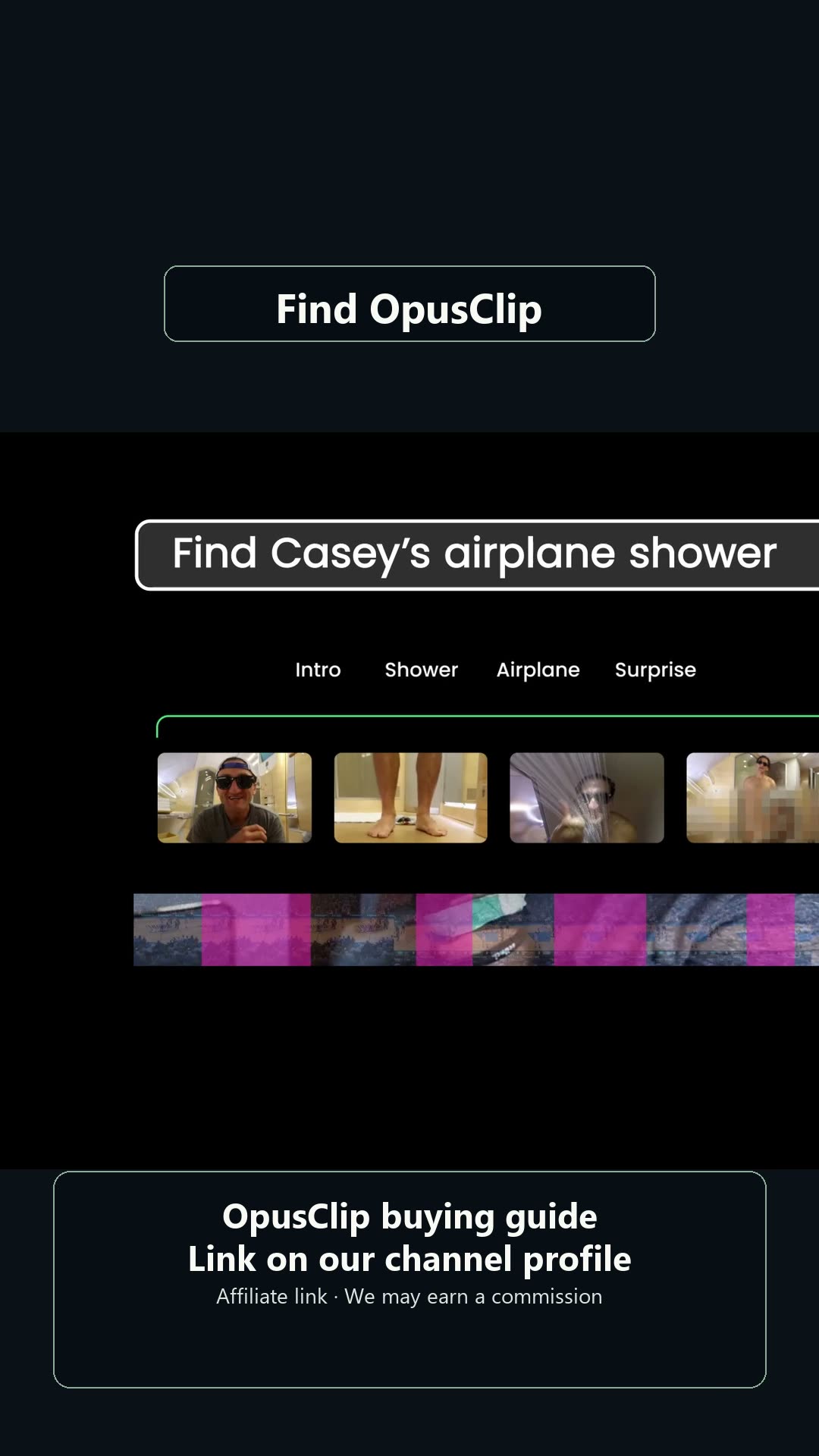 00:27
frames: 00:08 / 00:14 / 00:20 / 00:27 — unedited captures from the demo video above
read first, subscribe second
Processing minutes, clip counts and export options differ by tier and change over time. Check the current pricing page before assuming anything on this page still holds.
Results depend on framing, lighting, audio quality, camera movement and how many people are talking. Run a real recording through before paying — a polished demo is not your Tuesday webinar.
They’re fast, not flawless. Names, jargon and crosstalk are where transcripts slip — always proofread before anything ships.
Whether exports carry a watermark — and which branding options you get — depends on the plan. Confirm the current policy on the official site before it matters.
Highlight detection is a proposal, not a publisher. Keep a human in the loop for context, tone and what actually represents you well.
Point OpusClip at one long recording and see what it finds. Free to start — judge it on your own footage, not ours.
Try OpusClip ↗Affiliate link → opus.pro · verify current pricing, limits and watermark rules on the official site